Screen-share privacy
5 Essential Habits for Secure Screen Sharing During Live Calls
Prevent accidental data exposure during customer demos, team calls and recordings by checking sharing areas, notifications, on-screen data and meeting settings.
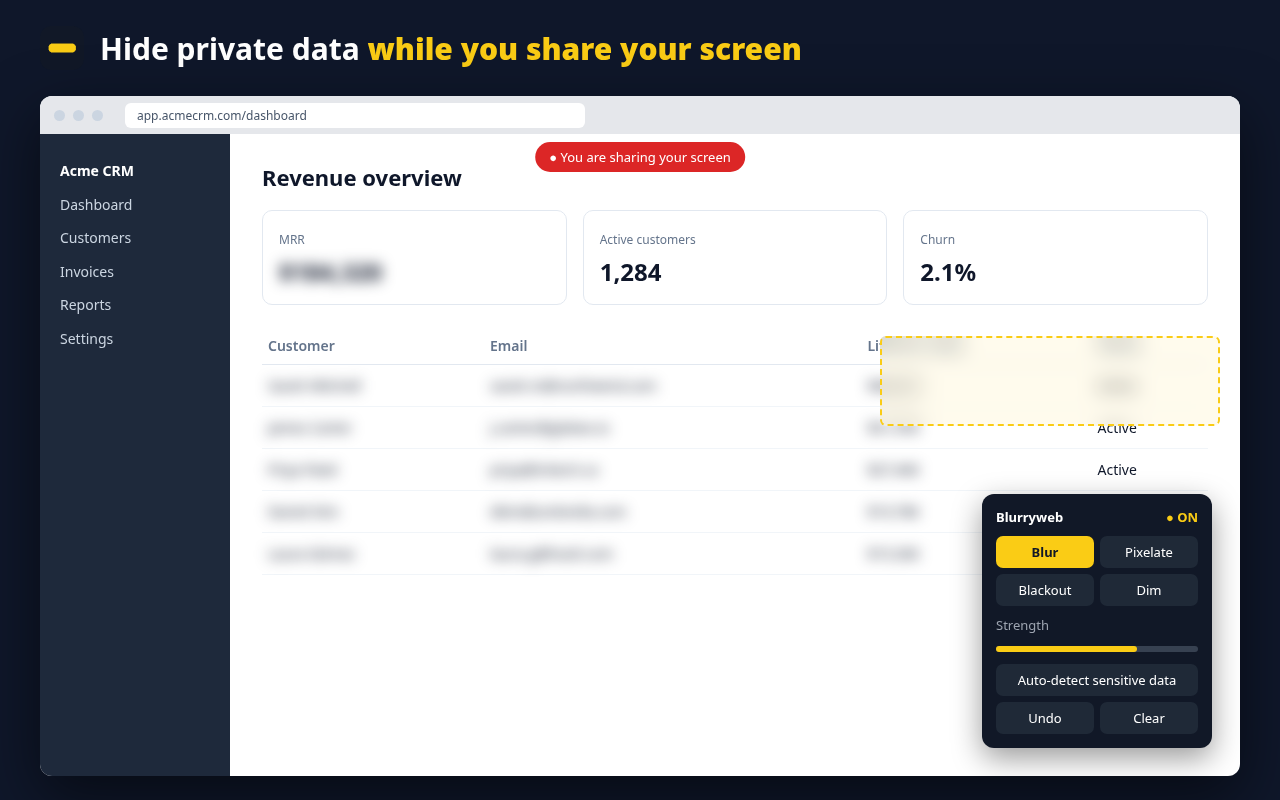
Screen sharing is a routine part of product walkthroughs, customer onboarding and remote troubleshooting. Yet the screen you use every day is rarely ready for an audience. A customer email in a dashboard, a private message preview or a production credential in a terminal can appear alongside the work you meant to show.
You do not need an elaborate setup to reduce that risk. A few deliberate checks before the call can help keep your presentation focused and your private information out of view.
1. Share the smallest area that does the job
If your meeting tool offers the choice, share a single application window or browser tab instead of your entire desktop.
A full-screen share can reveal your taskbar, desktop files and any unrelated window you bring forward. A tab or window share narrows what the audience sees, although the content inside that selected area still needs checking.
- For a browser demo: Open the relevant page in a dedicated window and close unnecessary tabs.
- For a presentation: Share the slide window rather than the desktop behind it.
- For a workflow across several programs: Prepare a clean workspace, close personal apps and check the full display before sharing it.
Do not assume your sharing choice carries over from a previous meeting. Confirm the selected tab, window or display every time.
2. Silence notifications before the call
A notification preview can expose information that has nothing to do with your presentation. Incoming messages, calendar reminders and phone alerts deserve the same attention as the document you plan to share.
Before you begin:
- Windows: Enable Do Not Disturb in notification settings. Older versions may call this Focus assist.
- macOS: Enable a Focus mode such as Do Not Disturb from Control Center.
- Chat and browser apps: Check their notification settings as well as your operating system's settings.
- Connected phones: Pause mirrored alerts if your computer displays notifications from your phone.
Review any exceptions that allow alerts through. Blurryweb's Windows app is not an automatic notification blocker; use your system and app settings to manage those interruptions.
3. Cover confidential information before presenting
Choosing the right window does not make everything inside it safe to show. Customer records, financial figures and credentials may sit beside the feature you are demonstrating.
Use sample data when possible. Where a visual cover is appropriate, prepare it before sharing:
- Browser pages: Use the Blurryweb browser extension to mask page elements or draw privacy zones. Auto-detect can help identify supported patterns, including emails, phone numbers and API keys, but you still need to inspect the page yourself.
- Windows programs: Use Blurryweb for Windows to draw opaque frosted or blackout covers over private areas. These are visible covers, not a blur of the pixels in the applications behind them.
- Changing layouts: Recheck masks after scrolling, opening menus or moving windows. A fixed desktop cover may no longer align with the information it was meant to hide.
For an opaque browser mask, choose Blackout rather than relying on a light blur. End drawing mode before navigating your presentation.
Make a short test recording in the capture mode you intend to use. A separate Windows cover may not be included when a meeting tool captures only another application's window. The Windows drawing canvas currently covers the primary monitor, so prepare and test your presentation there.
A mask does not remove the underlying information from a website or file. Do not send a confidential document merely because you covered it during the call.
4. Check tabs, recent items and clipboard history
Private information can appear through navigation just as easily as through a notification. Take a moment to inspect the places you might open during the demo.
- Browser tabs: Close unrelated tabs whose titles reveal client names, internal projects or personal activity.
- Address-bar suggestions: Avoid typing sensitive searches or browsing through private bookmarks while sharing. Open the pages you need beforehand.
- Recent-file menus: Check whether opening a document picker or an application's start screen will expose filenames you should not show.
- Clipboard history: On Windows, review clipboard history with
Win + Vif you use it, and clear sensitive entries before the meeting. Check the clipboard tools you use on other systems too.
Before pasting into a shared window, confirm what you copied. Clearing clipboard history does not remove information that has already been pasted into a document or captured in a recording.
5. Review who can join, share and access recordings
Your workspace is only part of the privacy check. The meeting's audience and recording settings matter too.
- Screen-sharing permissions: Where available, restrict sharing to hosts or the participants who need to present.
- Attendance: Use the platform's admission controls for external calls and confirm the intended people are present before showing confidential material.
- Recording: Check what is captured, where the recording will be stored and who can access it. Chat or participant details may be included, depending on the platform and settings.
- Distribution: Review a recording before sending it to others, and limit access to the intended audience.
Available controls vary by meeting platform, account and organization policy. Check the options in the service you actually use rather than assuming every meeting has the same protections.
A quick pre-call checklist
| Check | Action |
|---|---|
| Sharing area | Select the smallest tab, window or display needed |
| Notifications | Enable Do Not Disturb and review allowed alerts |
| Confidential data | Use sample data or prepare and test privacy covers |
| Workspace | Close unrelated tabs and check recent items and clipboard history |
| Meeting access | Confirm attendees, sharing permissions and recording access |
Once sharing starts, pause it before opening an unrelated account or rearranging your workspace. If you expose a password or API key, revoke or rotate it; hiding it afterward does not undo the exposure.
For a more detailed walkthrough, see our screen-sharing privacy checklist. You can find browser and Windows downloads on Blurryweb, along with the browser installation guide.